I love delegating decision-making to others. Like when I was trying to decide if I should splurge on a fancy hair dryer or save my dollars, I sent a quick Slack poll—in between 37 other very important, very work-related messages—and let my teammates decide for me.

Whether it's the hair dryer, project decisions, or team feedback, a Slack poll gets you an answer fast. Here, I'll show you two easy ways to create a poll in Slack so you can keep future decisions out of your hands, where they belong.
Table of contents:
How to create a poll in Slack using emoji reactions
Kevin from The Office had it right all along: "Why waste time? Say lot word when few word do trick." I'll take it a step further: why use words when you can use emoji? Here's how to run a simple Slack poll by using emoji reactions—or reacji, as Slack calls them.
Draft a Slack message as you normally would, and then list the available options with their relevant emoji. You can use classic polling options like 👍 for yea and 👎 for nay. Or you can have a little fun with it by using custom Slack emoji for options.

Team members can then add a reacji or click on any existing reacji to vote.

That's all there is to it.
How to create a poll in Slack using third-party polling apps
If you need a more elaborate solution than emoji reactions, Slack offers plenty of native integrations—like Polly and Simple Poll—that you can add to create polls inside the Slack app.
We use Polly at Zapier, so here's how to set it up. (The finer details will vary across apps, but the idea is the same for Simple Poll and probably most of the other polling apps: install the app, create a poll, and share it with your team.)
Go to the Slack Marketplace.
Search for
Pollyand follow the installation instructions.Once installed, go to the channel or group message where you want to add the poll.
In the message box, type
/poll, and click Create a polly.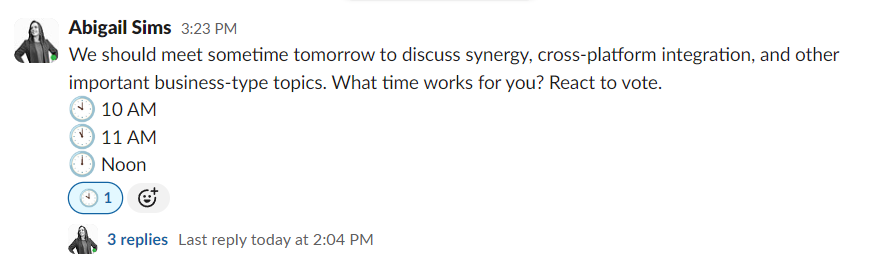
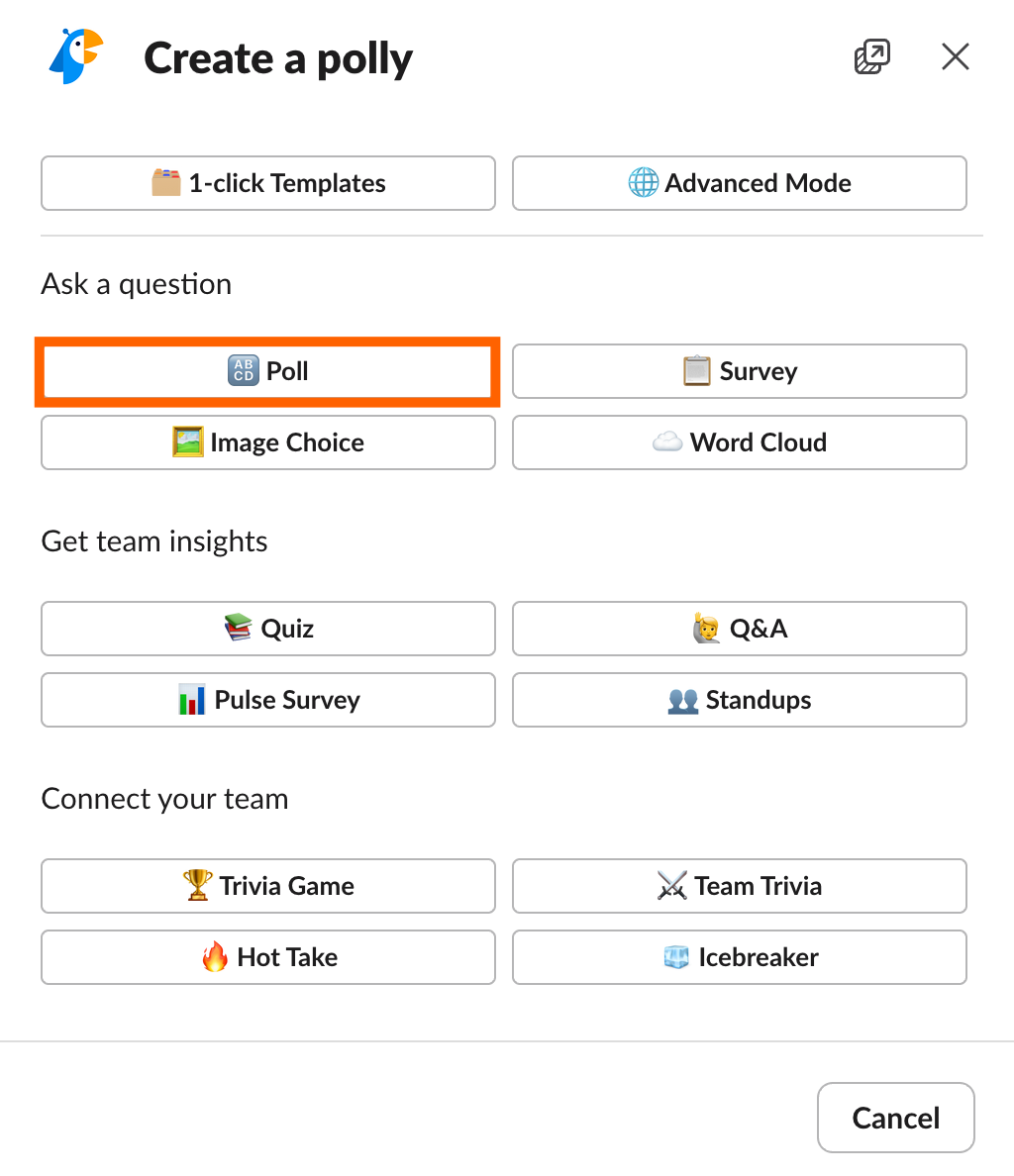
In the pop-up that appears, click Poll.
Fill out your poll. (If you're tempted to add multiple questions to your Slack poll, don't. Use a survey tool instead.)
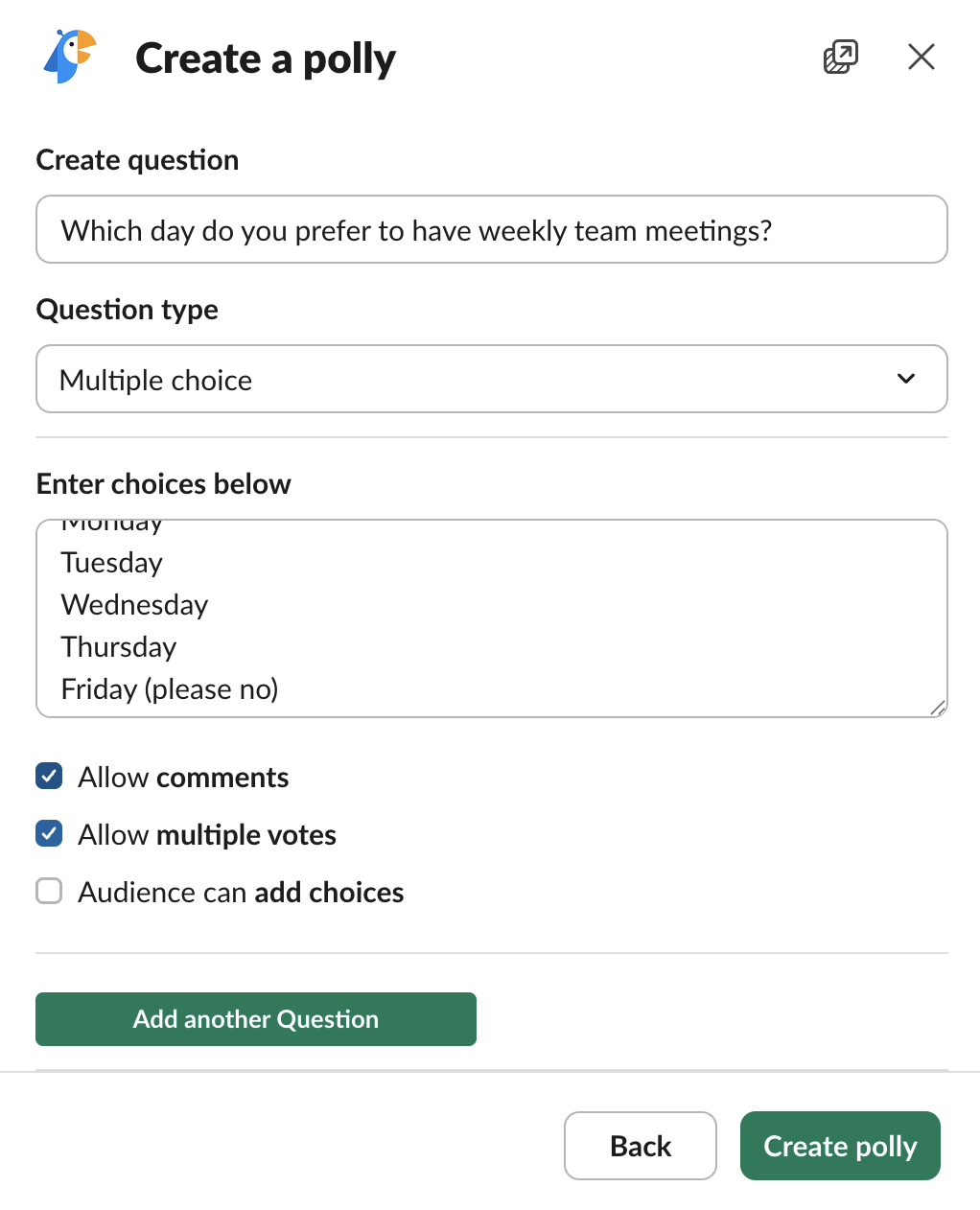
Click Create polly.
Click Send to share your poll in a Slack channel or DM.

Slack will automatically populate the name of the channel or DM that you initiated the poll from. If you want to change the channel or send the poll to additional channels, enter the name of the channel, and then click Send again.


The Slack poll will appear in the channel or DM you posted to, and everyone can vote to their hearts' content.

Tips for how to create a poll in Slack
Be the first to vote
Immediately after you share a Slack poll, react with each available emoji yourself. That way, folks just have to click on one of the existing emoji to cast their vote. Plus, in the case of sensitive questions, it takes the pressure off of being the first (and maybe only) person to vote for something unpopular.
Use anonymous voting
If you're asking a sensitive question—like salary satisfaction or whether anyone actually enjoyed the last team offsite—anonymous voting tends to get you more honest answers. Most third-party polling apps, including Polly and Simple Poll, support anonymous voting.
Schedule your polls
Send a poll at 4:35 p.m. on a Friday, and you might get three responses by Monday (I've learned this the hard way). Whether you're using reacji to create a Slack poll or a third-party polling app, schedule your polls to go out Monday morning or whenever your team is at their desks. Some polling apps also let you set a closing time so the poll doesn't linger in the channel forever while you silently judge everyone who ignored it.
Include open-text responses
Multiple choice is great for giving people a quick list of options to choose from. But it can box people in. If you want to know why someone voted the way they did or leave room for options you didn't think of, add an open-text field. This won't—and shouldn't—replace a proper survey, but it adds enough breathing room that you don't have to run a follow-up just to get more details to paint a full picture.
Keep polls to one question
A poll gives you a quick show of hands. It's ideal if you're asking one thing (one thing, Shelly) and want a fast answer. The moment you find yourself adding follow-up questions, you're venturing into survey territory, so you'll want to use a dedicated form builder or survey tool instead. Not sure where the line is? Check out Zapier's breakdown: polls vs. surveys.
Automate Slack with Zapier
Creating a poll in Slack is the easy part. Acting on what you learn from it is where things can get messy. On Zapier, you can connect Slack with the rest of your tech stack, so you can automatically kick off workflows in other apps based on Slack actions—like saving messages or adding reacji to them.
And if you regularly use AI assistants like ChatGPT or Claude and want the model to act—not just respond—you can use Zapier MCP to take action across 9,000+ apps directly from your chatbot. It can post to Slack, add a new row to Google Sheets, or kick off a multi-step workflow across your entire app stack, right from the chat thread. Zapier handles every OAuth connection behind the scenes, and you control which apps your AI can touch, so you can build safely across your entire tech stack. Learn more about how to automate Slack.
Zapier is the most connected AI orchestration platform—integrating with thousands of apps from partners like Google, Salesforce, and Microsoft. Use forms, data tables, and logic to build secure, automated, AI-powered systems for your business-critical workflows across your organization's technology stack. Learn more.
Related reading:
This article was originally published in August 2020 with contributions from Justin Pot and Abigail Sims. The most recent update was in May 2026.