
Have you ever stumbled upon a photo online—be it an uncredited meme, a stunning place you'd love to visit, or a celebrity wearing a vintage tee you now must have—and wondered, "Where'd this come from?"
You could take some wild guesses, go down some rabbit holes, and cross your fingers that you'll find the source. Or you can take the much faster route to solving your mystery: reverse image search.
Here's a step-by-step guide on how to reverse image search on Google using desktop or mobile.
Table of contents:
What is a reverse image search?
Reverse image search is a technique that allows you to use an image as your query to find related images, websites, and information across the web.
In practice, reverse image search can help you:
Identify the original source of an image
Find web pages where an image or similar images appear
Get information about an image
Find other image sizes
How does reverse image search work?
Instead of typing keywords, you upload an image or provide a link to an image. Then the search engine analyzes it, comparing it to its massive database of indexed images to locate similar or matching images.

If a reverse image search comes up with no results, it might mean that the photo (or similar photos) doesn't exist in other places across the web. Or, if it does, those places aren't searchable. For example, if you run a reverse image search of a picture taken from someone's private Instagram account, the reverse image search engine can't access the account's private content. It'll probably still suggest a few similar-looking photos, though.
How to reverse image search on Google (mobile)
There are a few ways to reverse image search on Google using your iPhone or Android. (I'm using an iPhone, but the steps are the same for Android.)
How to reverse image search from the search results
On your mobile device, open the Google app or go to google.com.
Enter your search query in the search bar. In the example below, I'm looking for images of the actor Maya Erskine in the show Mr. and Mrs. Smith so I can track down one of her character's outfits (or similar ones).
Tap Images to narrow your search results.
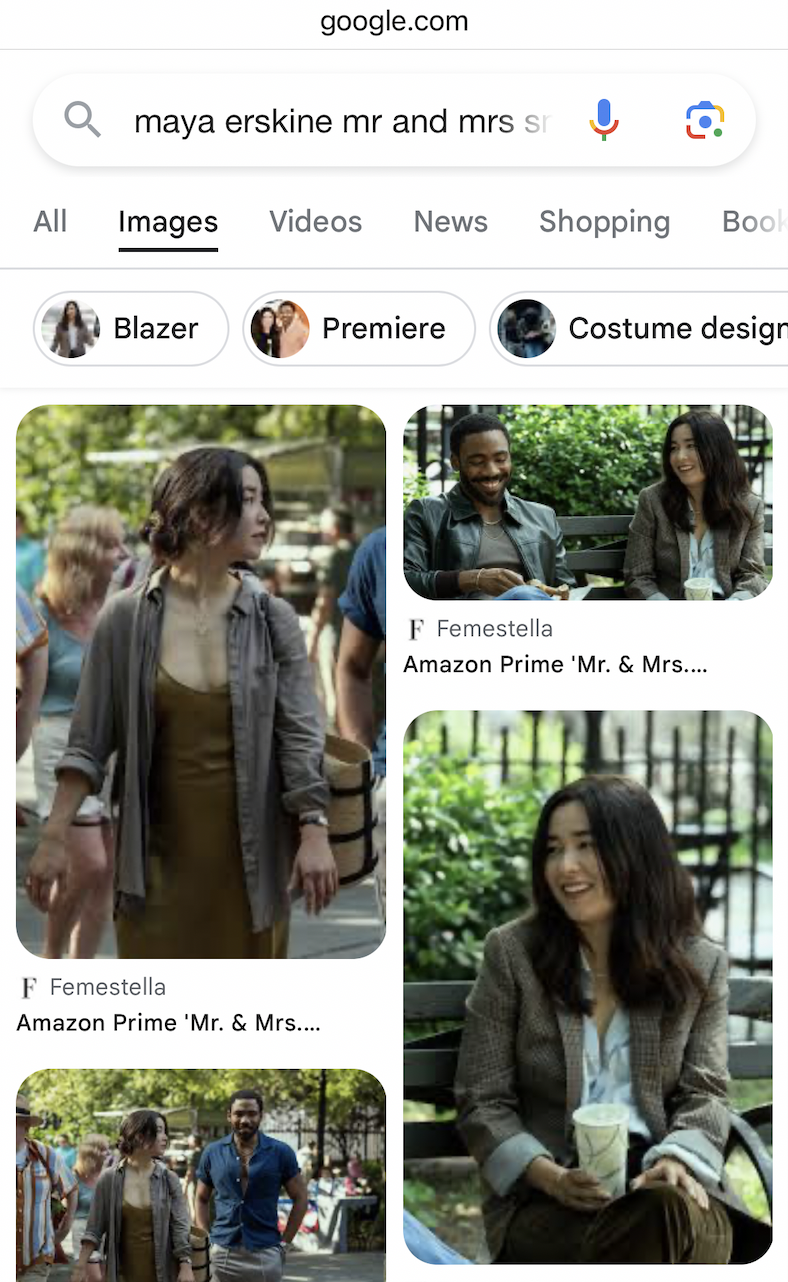
Tap the image you want to use in your reverse image search.
In the corner of the enlarged image view, tap the Google Lens icon.

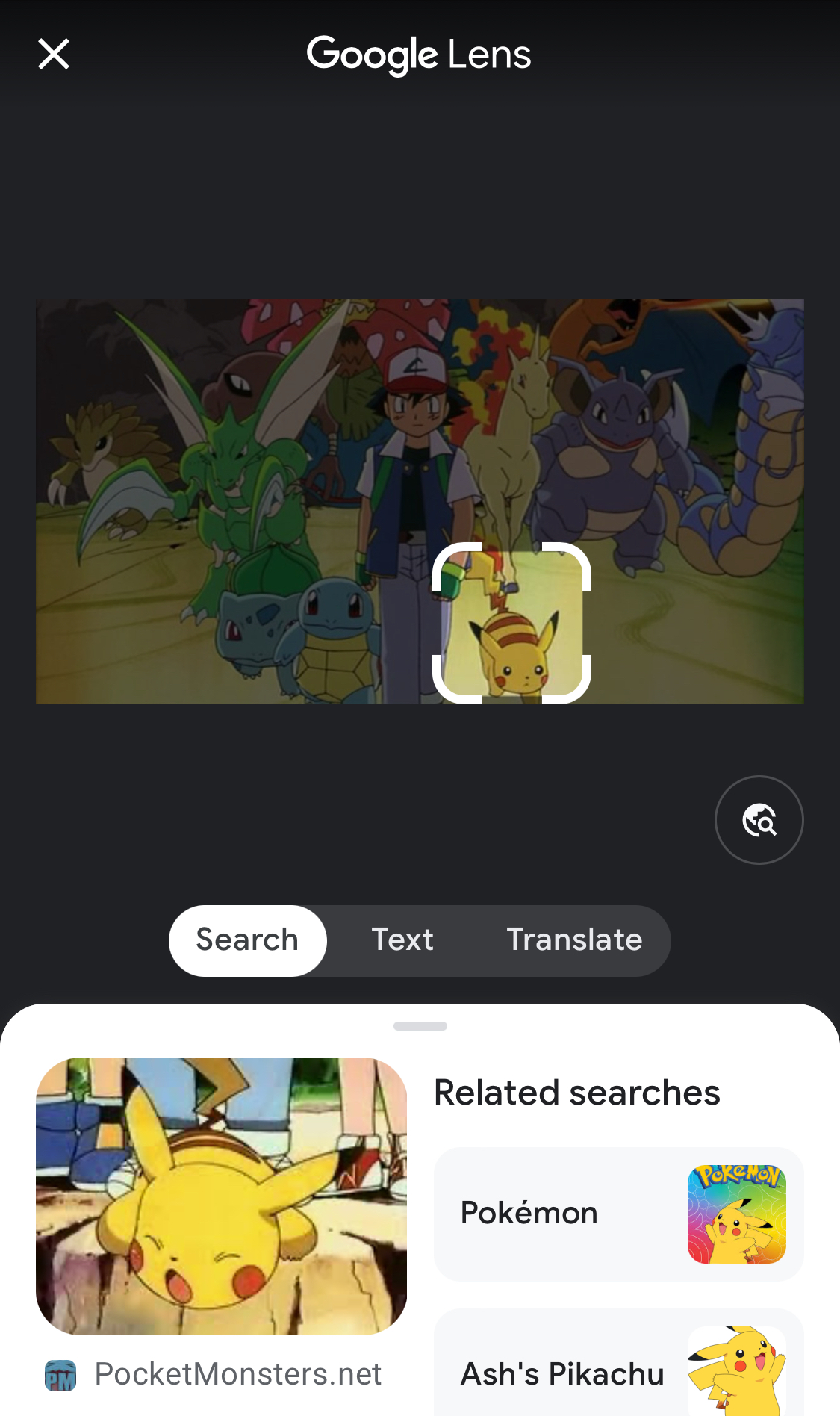
By default, Google will set its lens on what it assumes to be the main focus of the image. To narrow the focus, tap the section of the image you want it to search, and the results will update accordingly. Alternatively, you can drag the corners of the borders to manually adjust the focus.


Google will automatically display an AI overview of your search, plus any other relevant links.

If you're a Microsoft Bing user, you can also use Visual Search on bing.com or the Bing mobile app. It works much the same way Google Lens does: take or upload a photo, or enter an image URL, and Bing will return related results.
How to reverse image search from a webpage
You can also do a reverse image search on a Google page you're browsing.
Tap the three dots (
...) at the bottom of the page.
Scroll down, and tap Search screen with Google Lens.
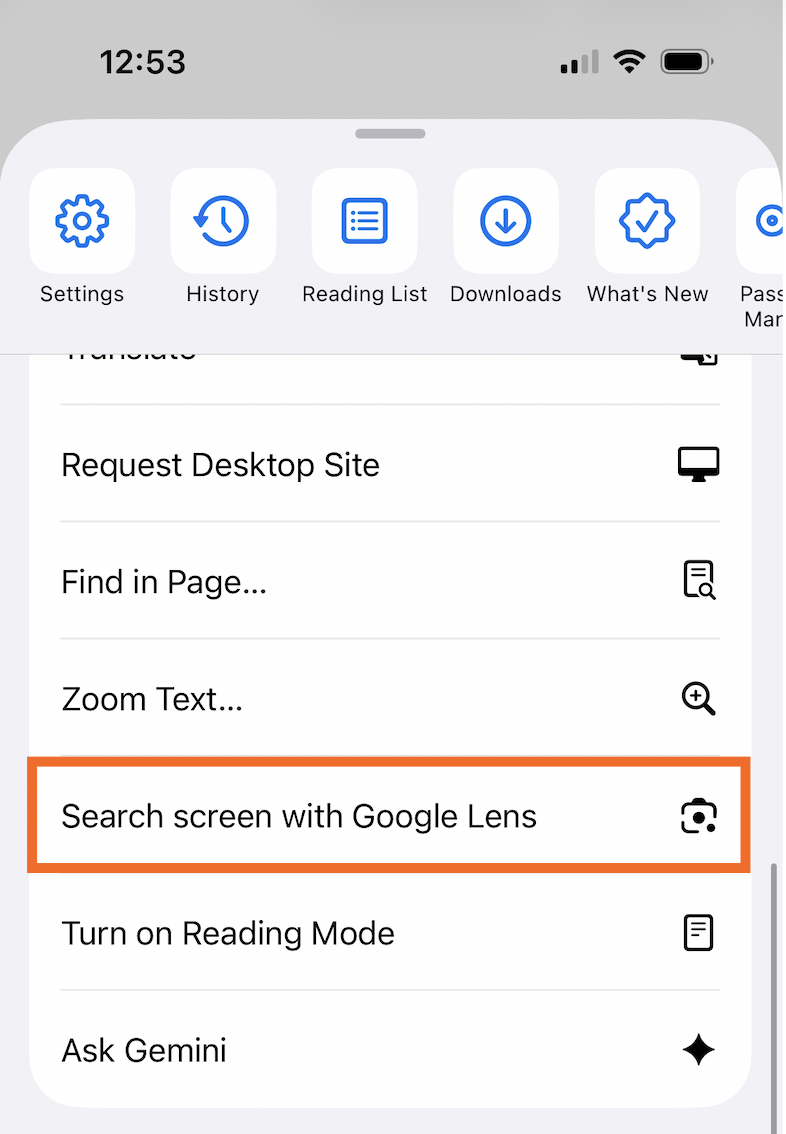
Tap the portion of the image you want to search.


That's it.
How to reverse image search using your own image
Open the Google app or go to google.com.
In the Google search bar, tap the Google Lens icon. (You might be prompted to allow Google to access your camera. If so, follow the prompts.)
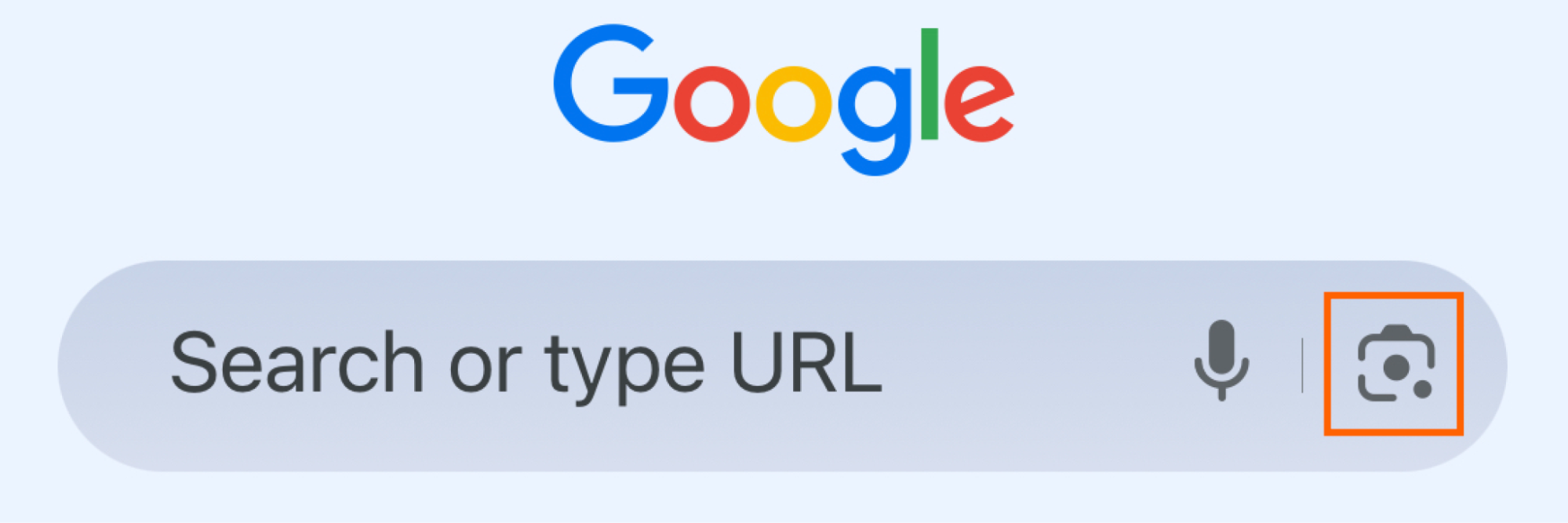
You have two options for how to add an image:
Take a photo: Use your phone's camera to take a photo of the thing you want to search for.
Upload a photo: Choose an image from your device's photo album.
If necessary, drag the corners of the image borders to only the part of the image you want to search.


How to reverse image search on Google (desktop)
On your desktop, you can reverse image search on Google the same way you would on your mobile device. But you also have a few more sleuthing options.
How to reverse image search from the search results
Go to google.com.
Enter your search query in the search bar.
Click Images.
Click the image you want to use in your reverse image search.
In the corner of the enlarged image view, click the Google Lens icon.
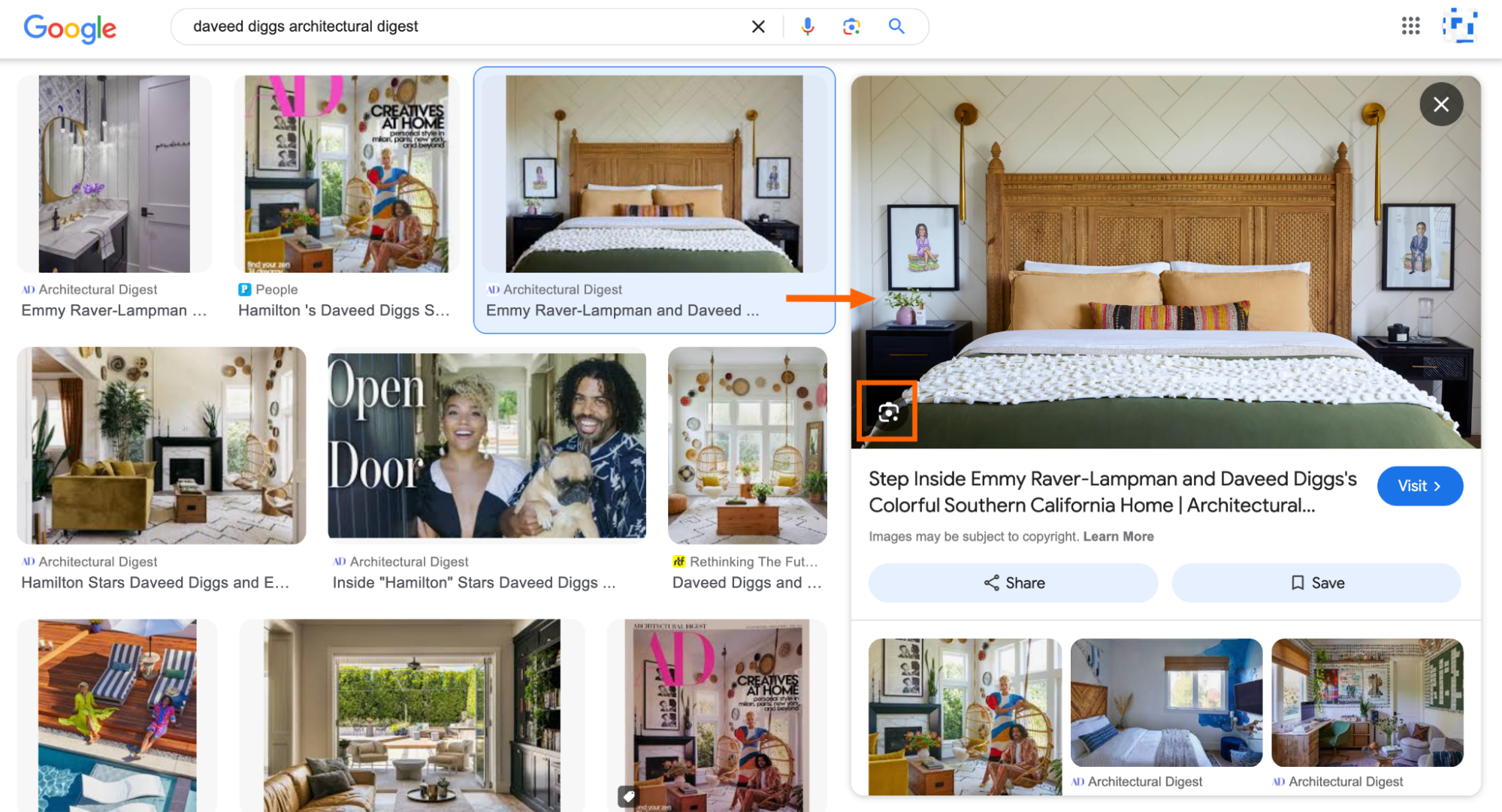
If necessary, drag the corners of the image borders to only the part of the image you want to search.
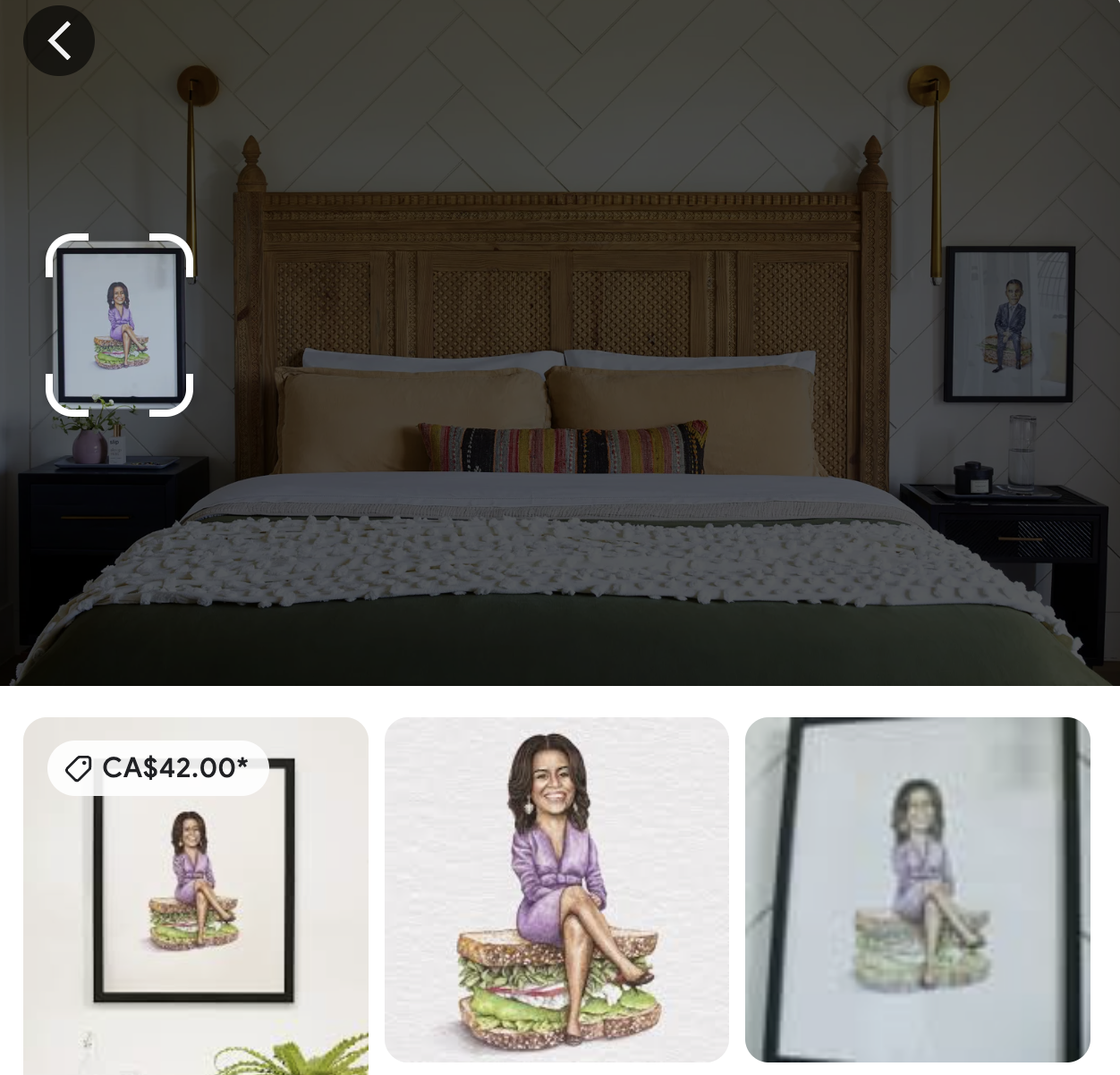
Scroll through the results and fall down the rabbit hole (or don't).


How to reverse image search from a webpage
You can use Google Lens to reverse image search images on a website. Before you do, be sure you're using the latest version of Chrome.
Scroll to the area of the page with the image you want to search.
Tap the Google Lens icon in your toolbar. If it's not already there, click the browser address bar, and then select the icon from the dropdown.
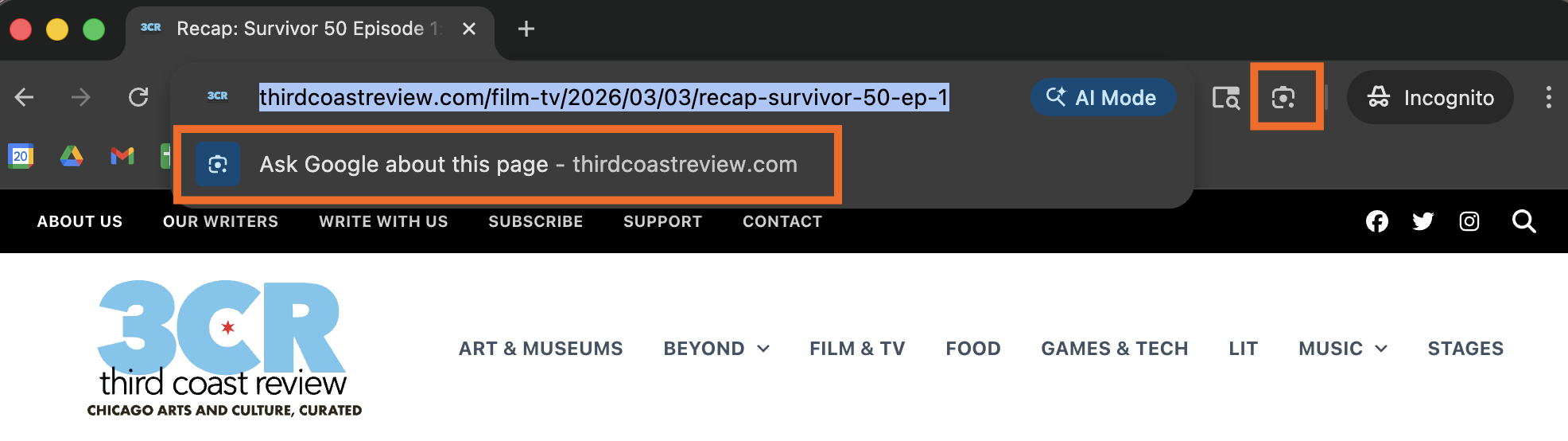
Highlight the image you want to reverse image search.
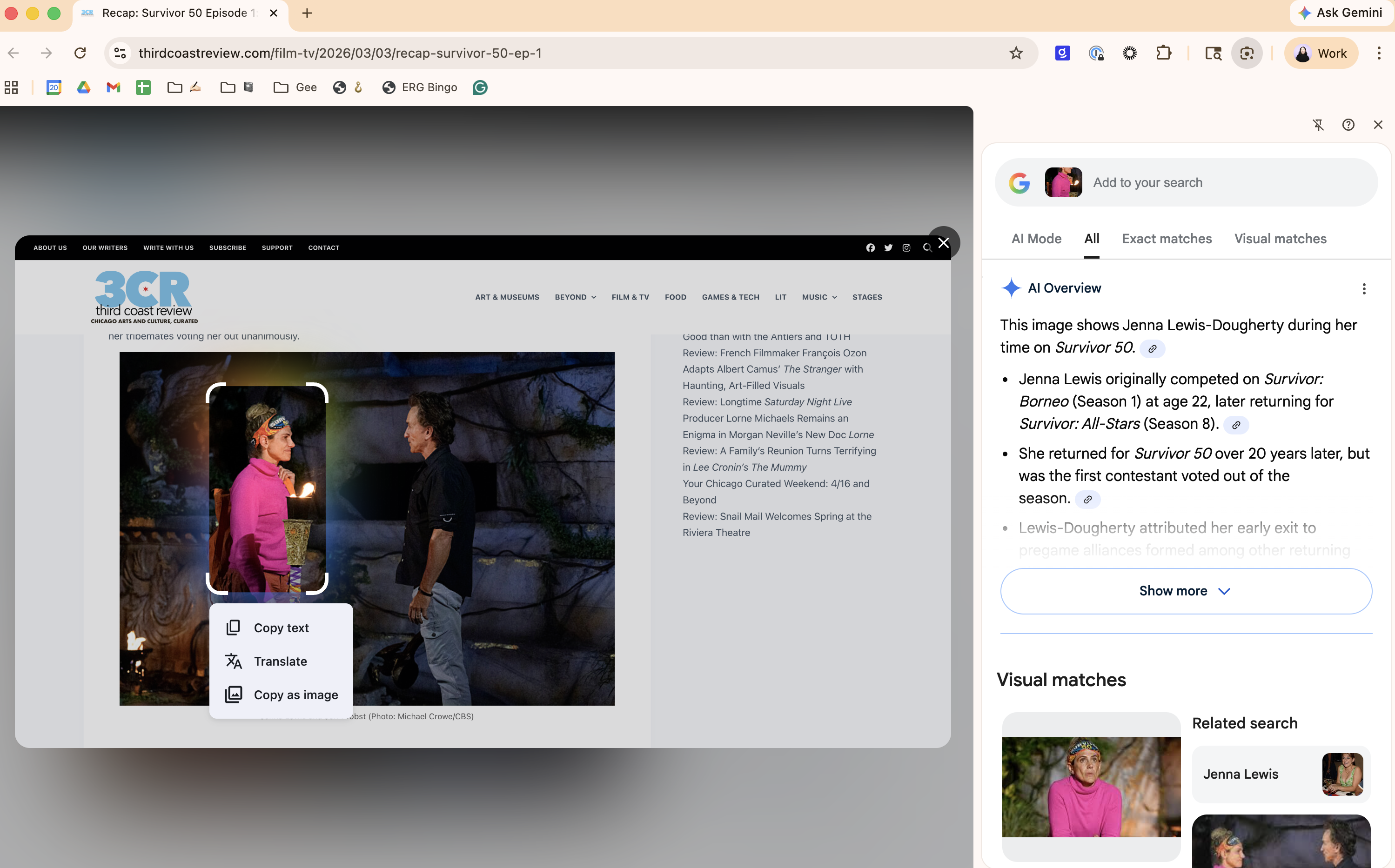


How to reverse image search using your own image
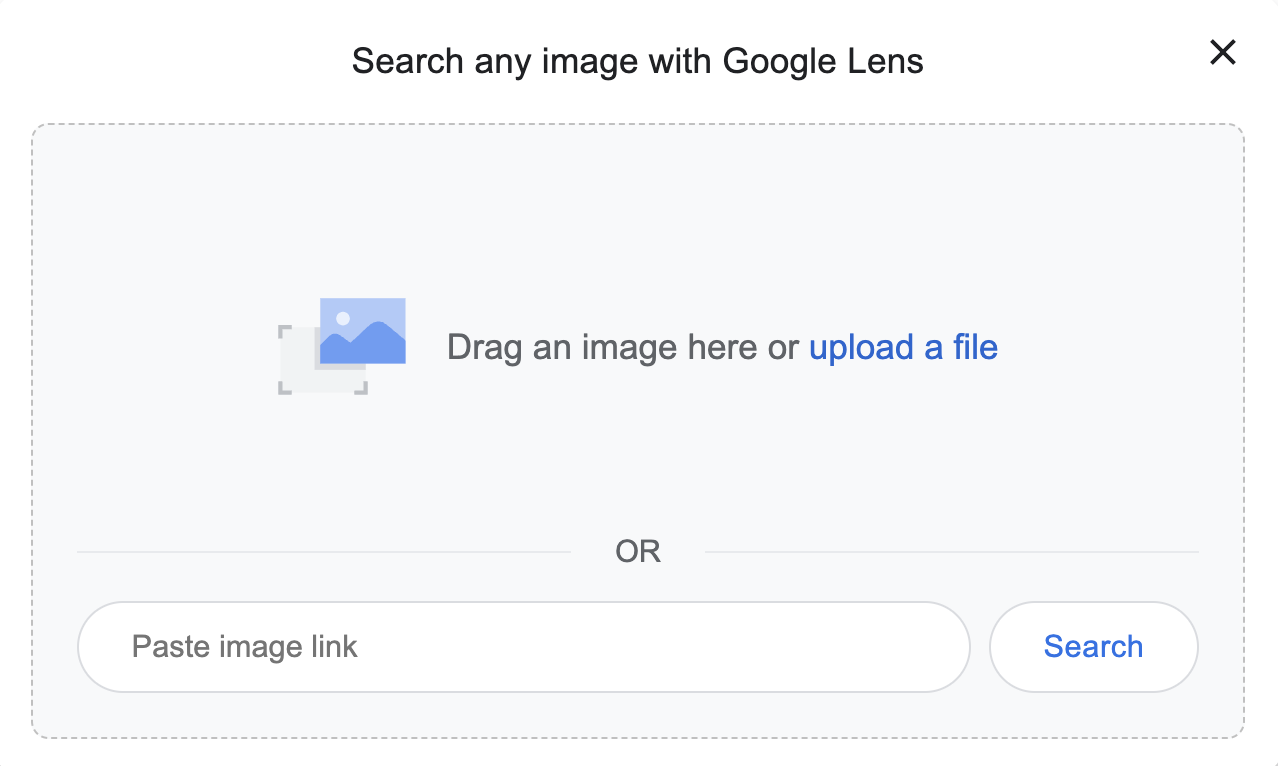
Go to google.com.
Click the Google Lens icon.
Upload an image from your computer or drag and drop it into the upload box. The image file must be in one of these formats: .jpg, .png, .bmp, or .webp.
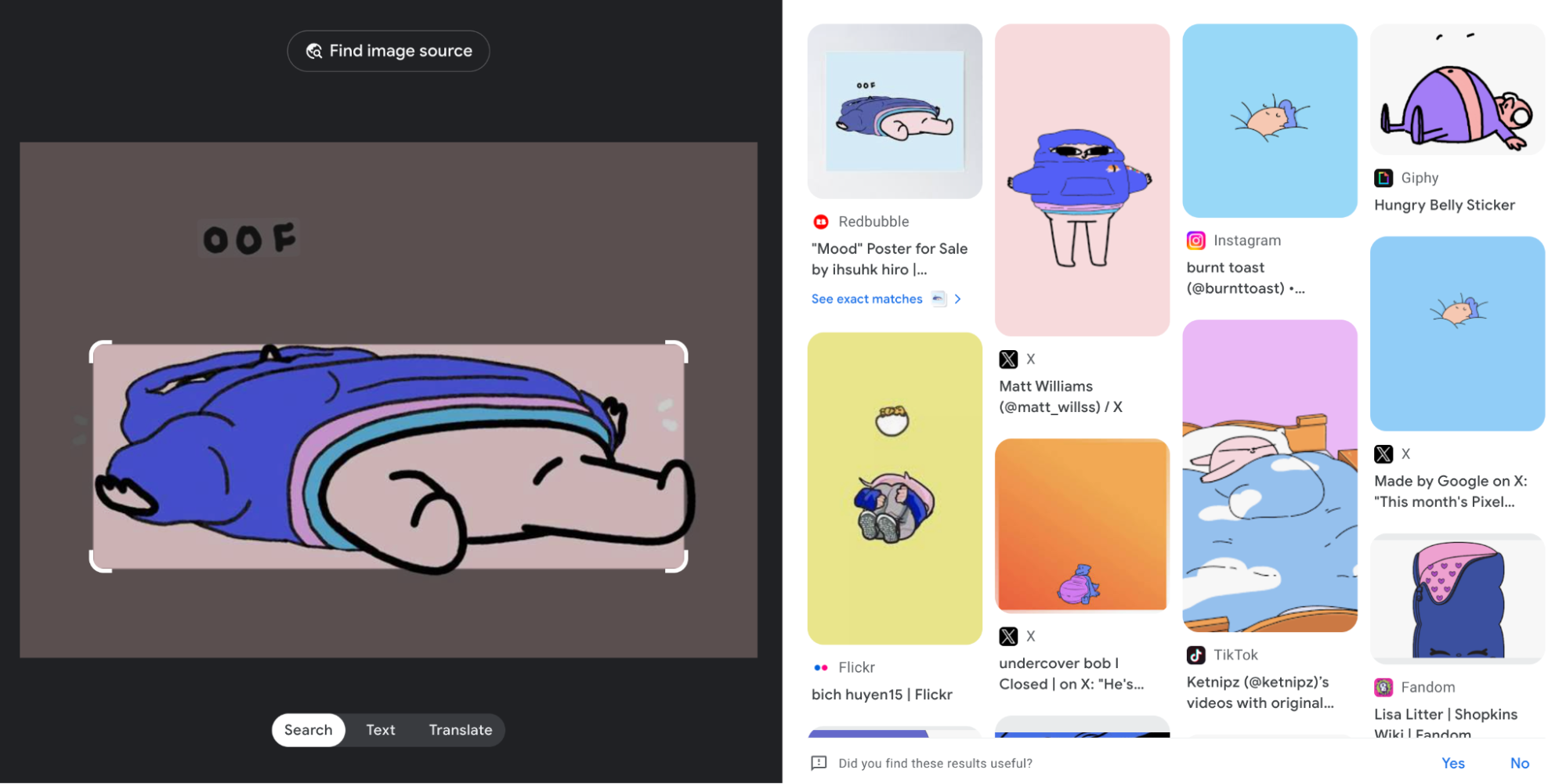
Scroll through the results.


How to reverse image search on Google: FAQs
If you're still wondering what else you can run reverse image searches on, check out the answers to these frequently asked questions.
What is Google Lens?
Google Lens is a visual search tool that can process images to help you find similar images or related content. In practice, this means it can do things like translate text, display shopping results, and identify people, places, and products.
Can you reverse image search on iPhone?
Yes, you can reverse image search on iPhone. Go to google.com on your mobile web browser or open the Google mobile app, and follow the steps outlined above.
Can you reverse image search a screenshot?
Yes, you can take a screenshot and use that to do a reverse image search.
Can you reverse image search a video?
You can't run a reverse image search on a video. But there are workarounds.
Take a screenshot of the video. Pause the video at the desired frame you want to learn more about and take a screenshot. Then, use that screenshot for a reverse image search.
Search for keywords. Pay attention to the content of the video and try searching for keywords or descriptions that might help you find the source.
Can you reverse image search on Facebook or Instagram?
Facebook and Instagram don't offer built-in tools to do reverse image searches. But it's easy to work around this. The simplest way: take a screenshot of the image you want to do a reverse search on, and then follow the steps outlined above.
Related reading:
This article was originally published in July 2024 by Hsing Tseng. The most recent update was in April 2026.



